
Personalize Visual Studio Code can transform your coding environment into a more enjoyable and efficient workspace. This guide covers essential customization options, from enhancing the Command Palette to adjusting cursor animations and icons. Let’s dive in!
Customize Command Palette
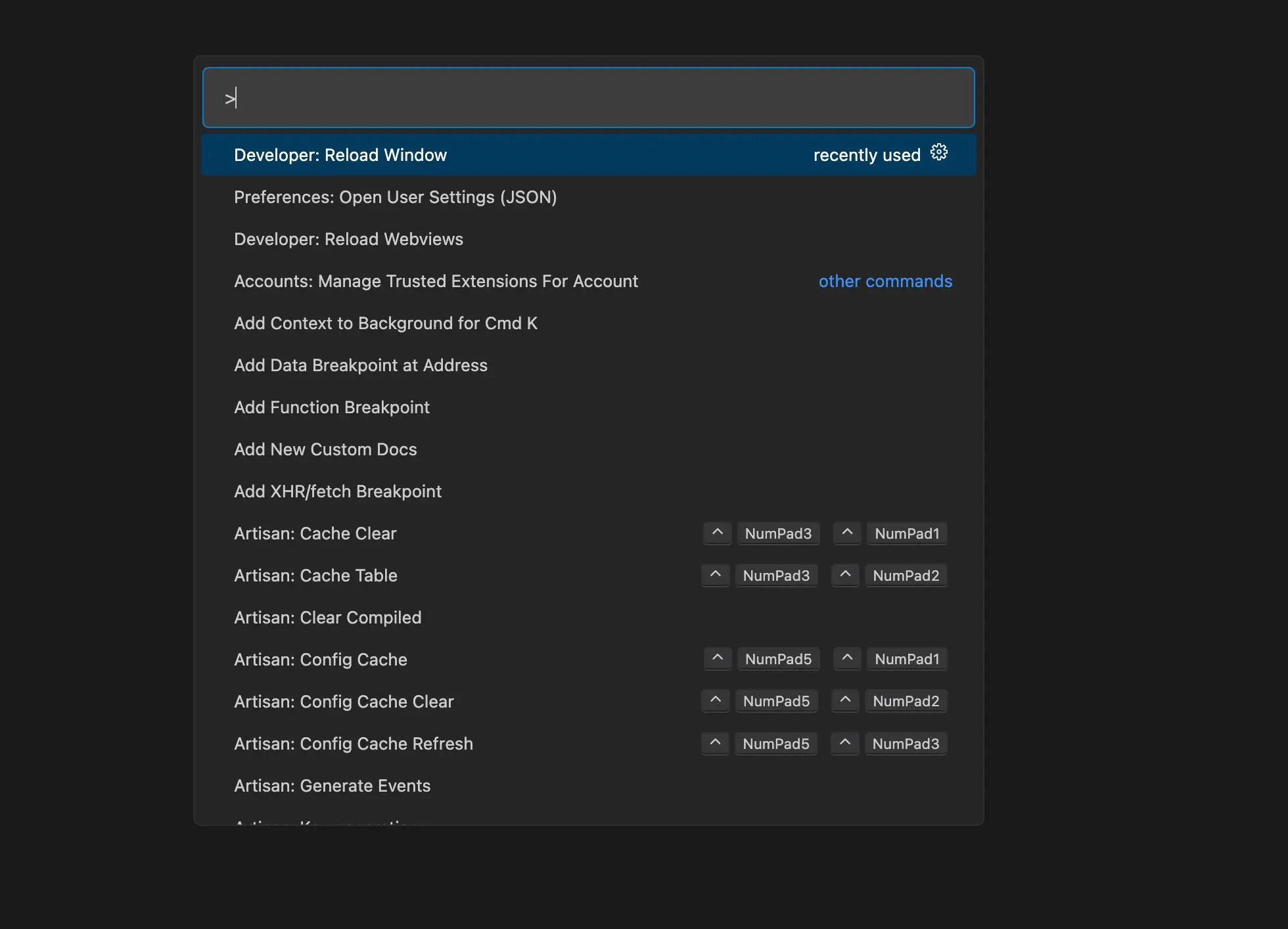
Looks awesome, right? Let’s get started on adding this feature to your code editor!
1. Download the File
- First, create the necessary directory and download the JavaScript file using the following command:
mkdir -p "$HOME/.config/vscode" && curl -o "$HOME/.config/vscode/resize-quickinput-widget.js" "https://gist.githubusercontent.com/Kamleshpaul/b872d2e8fbf11502ca1ba50429653fea/raw/210908045116b44f3af5db2e28896846e0257455/resize-quickinput-widget.js"2. Install the APC Extension
- Next, you need to install the
APC extension. You can do this by typingapc customizein the search extensions or by using this link.
3. Configure Settings
After installing the APC extension, open your settings.json file. You can do this by pressing Ctrl+Shift+P, typing Open User Settings (JSON), and selecting it.
Add the following to your settings.json :
"apc.imports": [
"file://${userHome}/.config/vscode/resize-quickinput-widget.js"
],That’s it for customizing the Command Palette!
Customize Colorful Cursor with Animation
- To add animation to your cursor, include the following settings in your
settings.json:
"editor.cursorBlinking": "solid",
"editor.cursorSmoothCaretAnimation": "on",Add Colors to Your Cursor
With the APC extension installed, you can use CSS to customize your cursor’s appearance. Add the following code to your settings.json:
"apc.stylesheet": {
".monaco-editor .cursors-layer .cursor": "background-image: linear-gradient(135deg, #67D0FF 10%, #FF4500 100%)"
}
Hide the Top Bar

If you wish to hide the top bar in Visual Studio Code, you can turn off the layout control with the following setting in your settings.json:
"workbench.layoutControl.enabled": false,
"window.commandCenter": false,If you wish to hide top bar breadcrumbs
"breadcrumbs.enabled": false,List Row Configuration
- You can further customize the appearance of the
side listsby adding the following configuration to yoursettings.json:
"apc.listRow": {
"lists": ["explorer-folders", "quick-input-list", "results"],
"height": 25
},Change Product icon

Are you bored with the old icons? Let’s change them for a fresh look! We will use Bootstrap Product Icons to update the icons in your Visual Studio Code. You can just click install and set.
Change icon Theme
For a more modern look, you can change the entire icon theme in Visual Studio Code. One popular option is the Material Icon Theme.
Note : -
Font Size Adjustment: Don’t change any fixed font sizes in your settings. Instead, you can adjust the font size using Cmd + to increase and Cmd - to decrease the font size quickly.
Color Customization: Avoid changing any fixed colors in your theme settings. It’s best to use themes for color customization rather than manually changing colors, as themes provide a more consistent look across your editor.
FAQ
Can I revert my changes if I don’t like the new settings?
Yes! You can easily revert your changes by removing or commenting out the added settings in your settings.json file. Just make sure to save the file after making any modifications.
Will these customizations affect performance?
Typically, these customizations should not impact performance significantly. However, if you notice any lag, consider disabling some features or extensions temporarily.
Can I use other extensions instead of APC?
Absolutely! While APC offers specific functionalities, you can explore other extensions that suit your needs better, such as the Custom CSS and JS Loader for similar capabilities.
Is it safe to use third-party icons and themes?
Generally, using popular extensions and themes from the Visual Studio Code Marketplace is safe. However, always check the reviews and ratings before installing to ensure reliability.
How can I contribute my own icon themes?
If you want to create and share your own icon themes, you can refer to the VSCode Extension Guide for instructions on developing and publishing your extension.